
Map
How to Track 100% in GTA 6 With Our Free Map & Checklist
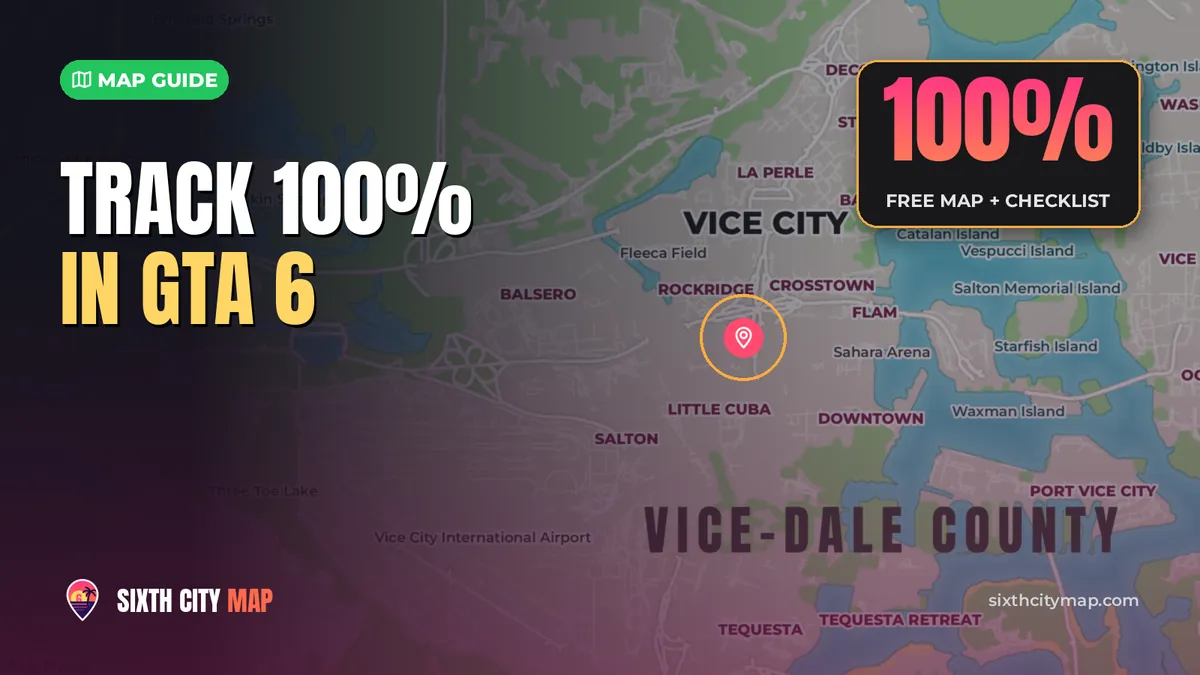
Open the map, click a pin and press Mark as found. Progress saves in your browser and syncs with the checklist — no login needed.
On this page (11)
Leonida is huge, and it's easy to lose track of what you've already found. Our free interactive map and checklist keep your progress in one place — no account needed.
1. Open the map
Go to the GTA 6 interactive map. Each of the six regions is labelled. Use the mouse wheel or pinch to zoom, and drag to move around.
2. Filter what you see
Use the category list on the left (or the Filters button on mobile) — towns, neighbourhoods, landmarks, nature spots, islands, activities and more. Tap a category to hide or show it, or use Hide all to start from a clean map. Your filter choice is remembered.
3. Mark locations as found
Click any pin, then press Mark as found. The pin fades out and the location is ticked off in the checklist automatically. Turn on Hide found to only see what's left.
4. Use the checklist
The checklist shows everything in lists with progress bars, plus extra goals like visiting every region. Use the search box to find an item quickly, or Hide completed to focus on what's left.
5. Move your progress to another device
Progress is saved in your browser. To move it:
- On the checklist page, press Export — a progress code is copied.
- On your other device, open the checklist and press Import, then paste the code.
How often is it updated?
New locations are added every day as players discover and confirm them across Leonida. Item IDs never change, so your saved progress is safe after updates.
More map features
- Search — type a place name, or a grid code like F7, to jump straight there.
- Grid — switch on the A1–M9 grid overlay to share exact spots with friends ("it's in H4").
- NEW badges — recently added locations get a NEW tag, and the Recently added box lists them.
- Location pages — every pin has its own page with nearby places, the county it's in and tips. Press the details link in any popup.
- Fullscreen — use the fullscreen button for a bigger view on a second screen.
- Mobile — on a phone, the sidebar becomes a bottom sheet so the map stays big.
What's in the checklist?
The checklist isn't just map pins. It also includes real in-game tasks:
| List | What it tracks |
|---|---|
| Story chapters | Your progress through the five story chapters |
| Jason's house | All the repairs before Lucia comes home |
| Port Gellhorn safes | Kingpin Bowling, Brooks Boatworks and La Cascara Motel |
| Milestones | Things like registering your first car and unlocking Lucia |
| Cheats | Every cheat unlock requirement found so far |
| Regions & places | Visiting every region and location on the map |
Each section has its own progress ring, and the big ring at the top shows your total.
Share your progress
Press Share on the checklist to create a progress card with your percentage and top sections. You can download it as an image, copy a text version, or share it straight to apps on your phone.
Tips for 100% completion
- Do missable jobs first. Jason's house repairs close when Lucia comes home.
- Clear one region at a time. Filter the map to one area and use Hide found.
- Back up weekly. Use Export and keep the code somewhere safe.
- Check NEW pins. We add locations every day, so revisit the Recently added box.
FAQ
Do I need an account to save progress?
No. Progress is saved in your browser automatically.
Will I lose my progress if I clear my browser?
Yes — clearing site data removes it. Use Export to keep a backup code.
Can I suggest a missing location?
Yes, please do! On the map, press + Suggest a location, tap the spot, add a name and a short note, and send. You can also email us from the contact page.
Does the map work on mobile?
Yes. On phones the sidebar becomes a bottom sheet, and the map supports pinch-to-zoom.
Can I share my checklist progress?
Yes. Press Share on the checklist to make a progress card you can download or share.
Is Sixth City Map official?
No. It's a free fan-made site and isn't affiliated with Rockstar Games or Take-Two Interactive.
Related guides
 Map
GTA 6 Map Regions Explained: All 6 Areas of Leonida
Every region of the GTA 6 map — Vice City, Leonida Keys, Grassrivers, Port Gellhorn, Ambrosia and Mount Kalaga — what each is like and where it sits.
5 min read · Updated November 21, 2026 Tips
GTA 6 Schafter V12: Stats, Real-Life Car and How to Steal It for Raul
Everything about the Benefactor Schafter V12 in GTA 6: stats, the real car it's based on, how to steal it for Raul without killing anyone, and how to get your own.
3 min read · Updated November 25, 2026 News
PortWatch VI Explained: The GTA 6 PC Port Tracker (and Does GTA 6 Run on PC Yet?)
What is PortWatch VI, the site tracking unofficial GTA 6 PC ports like VIctory and Leonida? Here's what its percentages mean, the latest status, and the risks.
2 min read · Updated November 25, 2026